Most people scroll with the sound off.
If your video has no captions, they miss the point and keep scrolling. Captions also help deaf and hard-of-hearing viewers, people watching in a second language and anyone in a noisy room.
The good news? AI has made captioning fast and cheap. We compared the 11 best closed captioning tools for 2026, from free options to pro services, so you can pick the right one.
Closed Captions vs Open Captions vs Subtitles
These words get mixed up a lot. Here's the simple version.
| Type | What It Means |
|---|---|
| Closed captions | Viewers can switch them on or off. They include speech plus sounds like [music] or [laughter]. |
| Open captions | Burned into the video, so they always show. Popular on social media. |
| Subtitles | Usually just the spoken words, often translated into another language. |
Most tools on this list can do all three. You either export a caption file like SRT or VTT, or burn the captions right into the video.
Why Captions Matter in 2026
- More views. Silent autoplay is everywhere, and captions keep people watching.
- Better SEO. Search engines and YouTube can read your captions, which helps your videos get found.
- Accessibility. Captions make your content open to millions of deaf and hard-of-hearing viewers, and many organisations are required to provide them.
- New audiences. Translated subtitles let you reach viewers in other languages without making new videos.
What to Look For
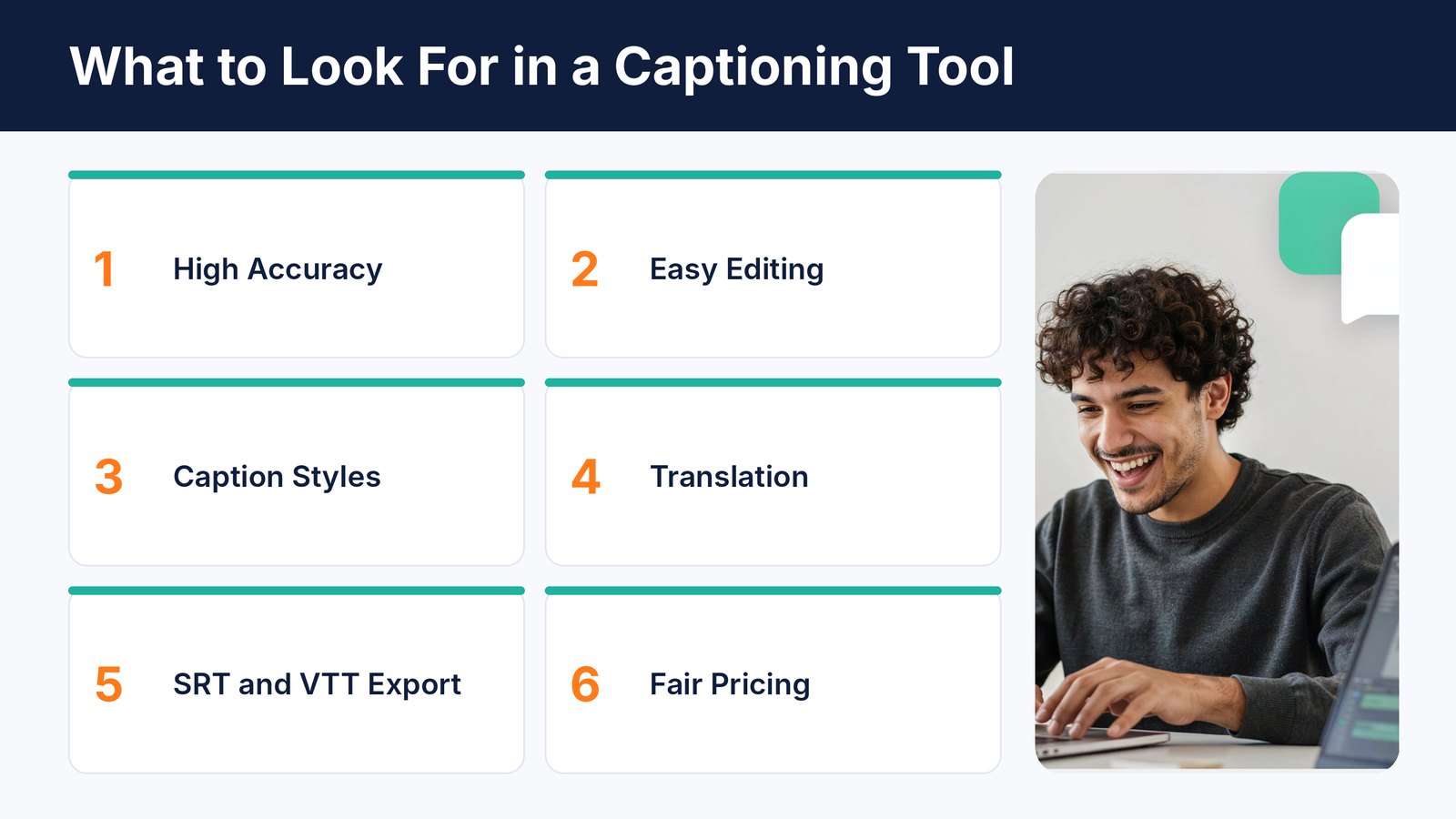
- High accuracy. Fewer mistakes means less time fixing captions by hand.
- Easy editing. You will always need to fix a name or two, so editing should be quick.
- Caption styles. Bold, animated captions work best on social media.
- Translation. Handy if you want viewers in other countries.
- Export options. SRT and VTT files for YouTube and players, or burned-in captions for social.
- Fair pricing. Watch for minute limits and watermarks on cheap plans.
How We Picked These Tools
We looked at each tool's own website and pricing page in October 2026, watched their demos and compared what you actually get for the money.
We favoured tools that are accurate, easy for beginners and fairly priced. We also dropped a few older tools from our 2023 list that have fallen behind or no longer offer self-serve captioning.
Quick Comparison
| Tool | Best For | Starting Price |
|---|---|---|
| VidScribe AI | Captions, translation and dubbing at the lowest cost | $5.58 a month, paid yearly |
| Rev | Top accuracy with human options | $25.49 a month, paid yearly |
| Descript | Editing video by editing text | $16 a month, paid yearly |
| Kapwing | Quick captions in the browser | Free, Pro $16 a month yearly |
| VEED | Styled social media captions | From $10 a month, paid yearly |
| Happy Scribe | Many languages and file formats | From $8.50 a month |
| Maestra | Live captions and teams | $23 a month, paid yearly |
| Submagic | Viral short-form captions | $12 a month, paid yearly |
| CapCut | Free captions for creators | Free, Pro $19.99 a month |
| Subtitle Edit | Free, detailed caption editing | Free |
| YouTube Studio | Free captions for YouTube videos | Free |
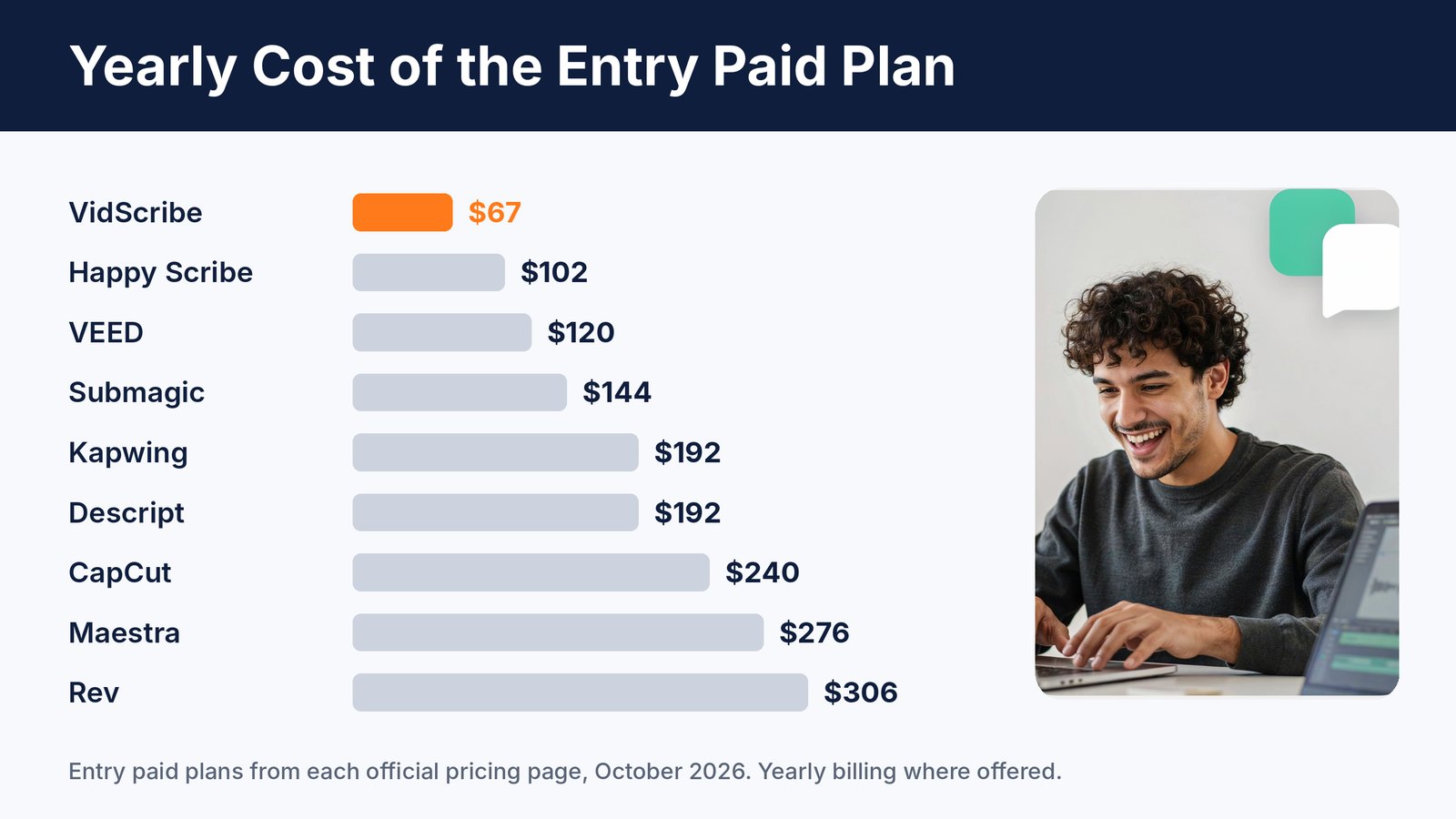
Over a year, the difference adds up fast. Most paid captioning tools cost two to five times more than VidScribe, and many still limit your minutes.
1. VidScribe AI
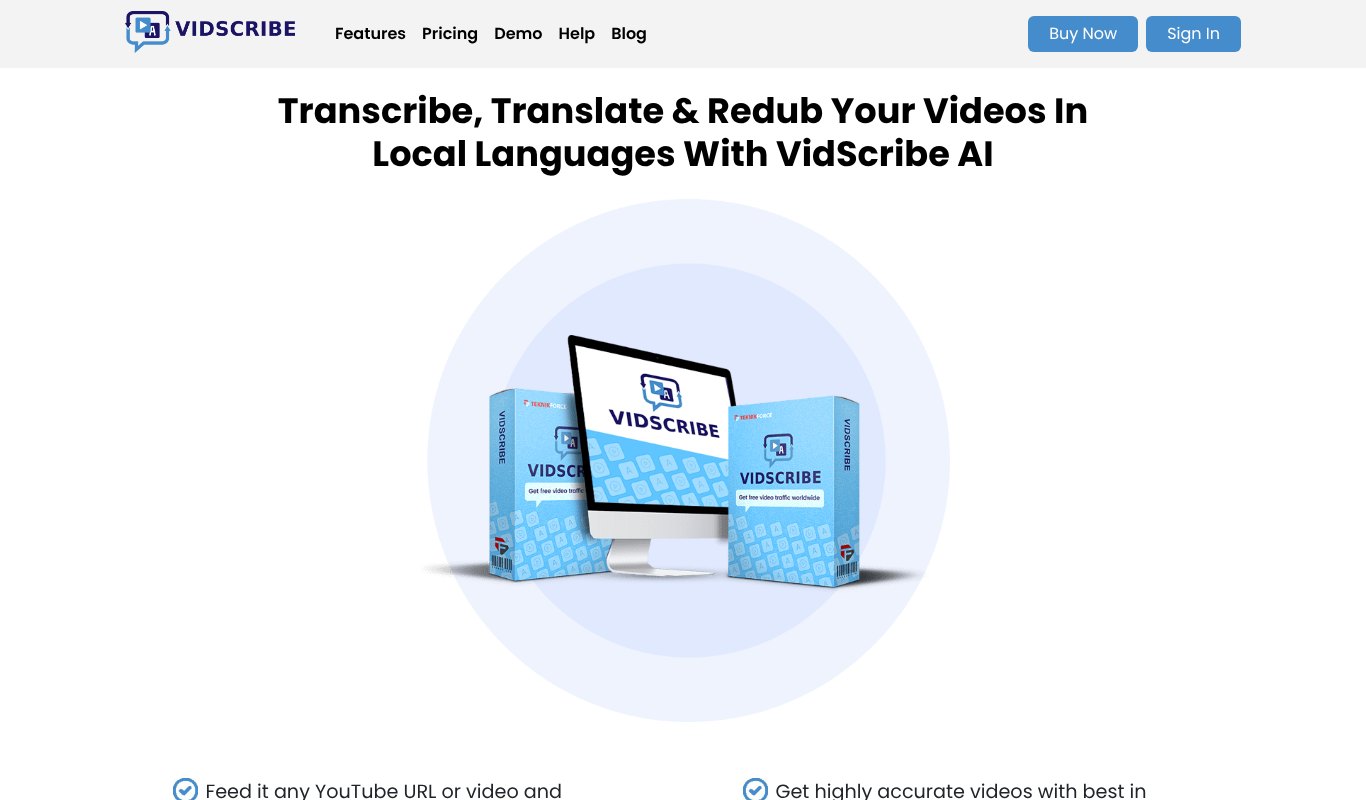
Full disclosure, VidScribe AI is our own product, made by Teknikforce. We built it for marketers and creators who want accurate captions without paying by the minute.
Give VidScribe a video file or just a YouTube link. It transcribes the speech, lets you fix anything in an easy editor, and adds bold, eye-catching captions. Use ready-made caption styles or your own fonts and colours, or export a clean subtitle file.
Then it goes further. VidScribe can translate your captions into other languages and even redub the whole video. Its AI Dub feature works out who is speaking and keeps each speaker's own voice.
It's a desktop app for Windows and Mac, so there's no cloud queue and no minute counter ticking down.
Pros
- Captions, translation and dubbing in one tool
- Styled captions or clean subtitle files
- Works from a YouTube link
- No per-minute charges
- Lowest price on this list
Cons
- Desktop app, so you install it instead of working in a browser
- No human captioning service
Pricing Just $5.58 a month, paid yearly ($67 a year), or $6.99 month to month. 30 day money-back guarantee.
2. Rev
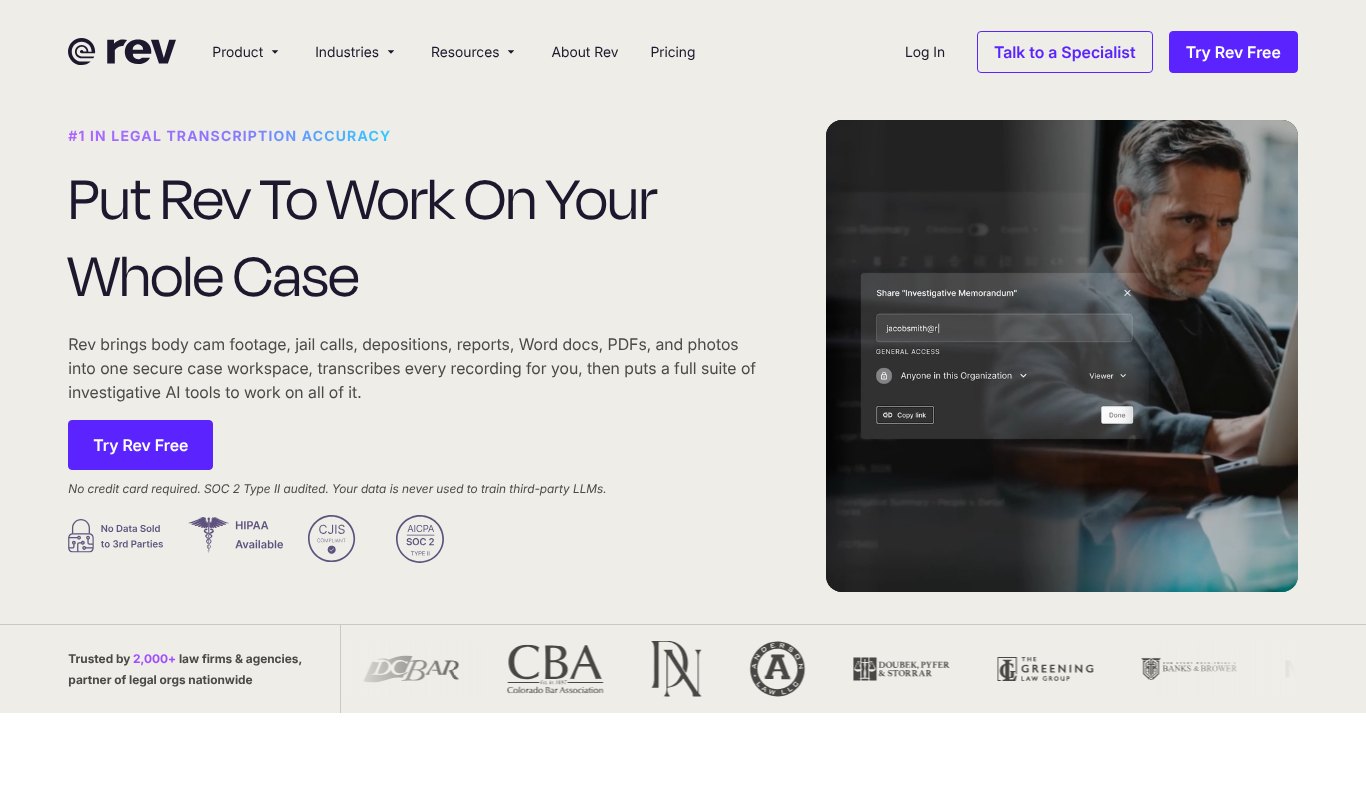
Rev has been a big name in captions for years. It offers fast AI captions and, for important work, human-verified captions that are checked by real people.
That human option makes Rev popular with businesses, schools and legal teams who can't afford mistakes. It's more expensive, but you get peace of mind.
Pros
- Very accurate AI captions
- Human-verified captions available
- 37+ languages for transcription
Cons
- Pricey for regular creators
- Now focused heavily on legal and business teams
Pricing Free plan with 45 minutes a month. Pro is $25.49 per seat a month, billed yearly.
3. Descript
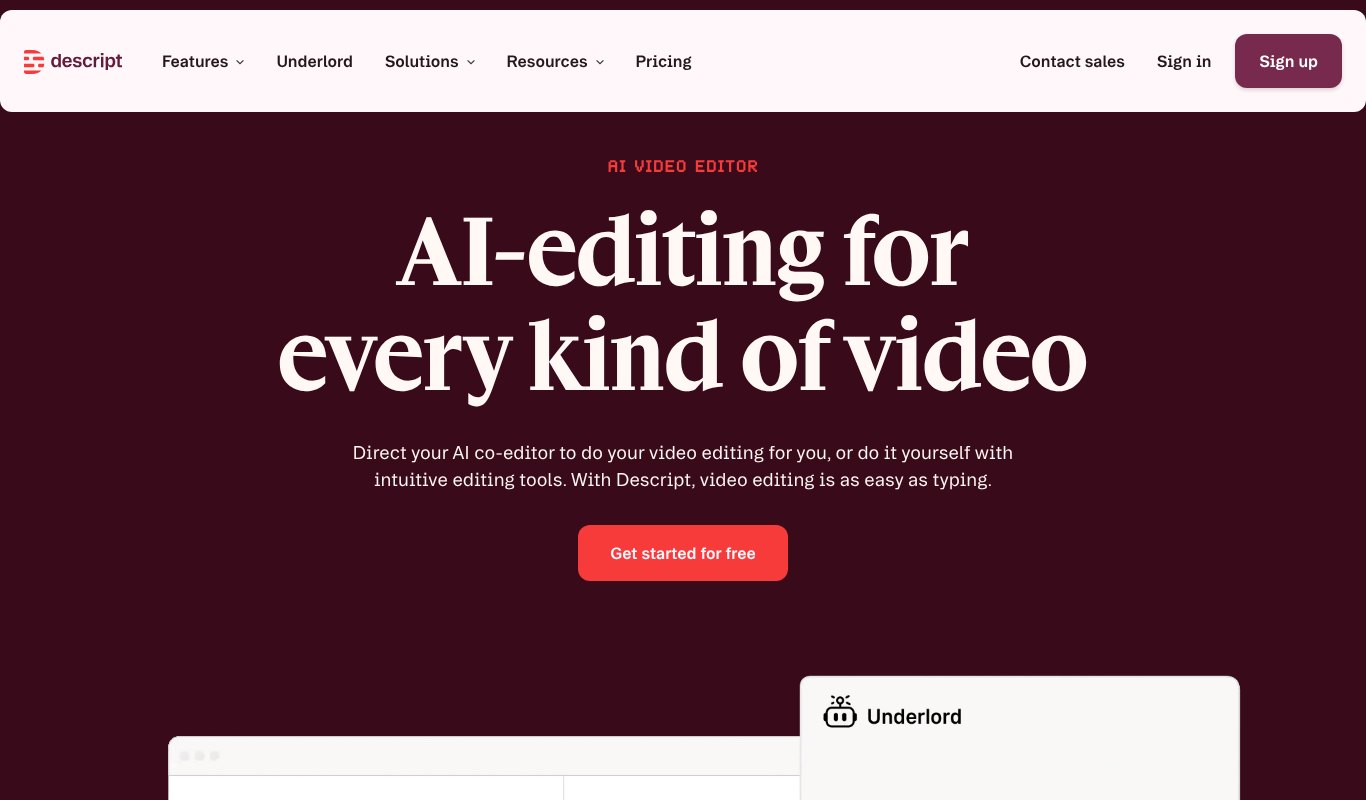
Descript turns your video into a document. Delete a word from the transcript and it disappears from the video. Captions come almost for free, since the transcript is already there.
It's a great pick if you edit your own videos and want captions as part of the same workflow.
Pros
- Edit video by editing text
- Accurate transcripts
- Translation and dubbing in 30+ languages
Cons
- Takes time to learn
- Media minutes are limited on each plan
Pricing Hobbyist is $16 a month paid yearly, or $24 month to month.
4. Kapwing
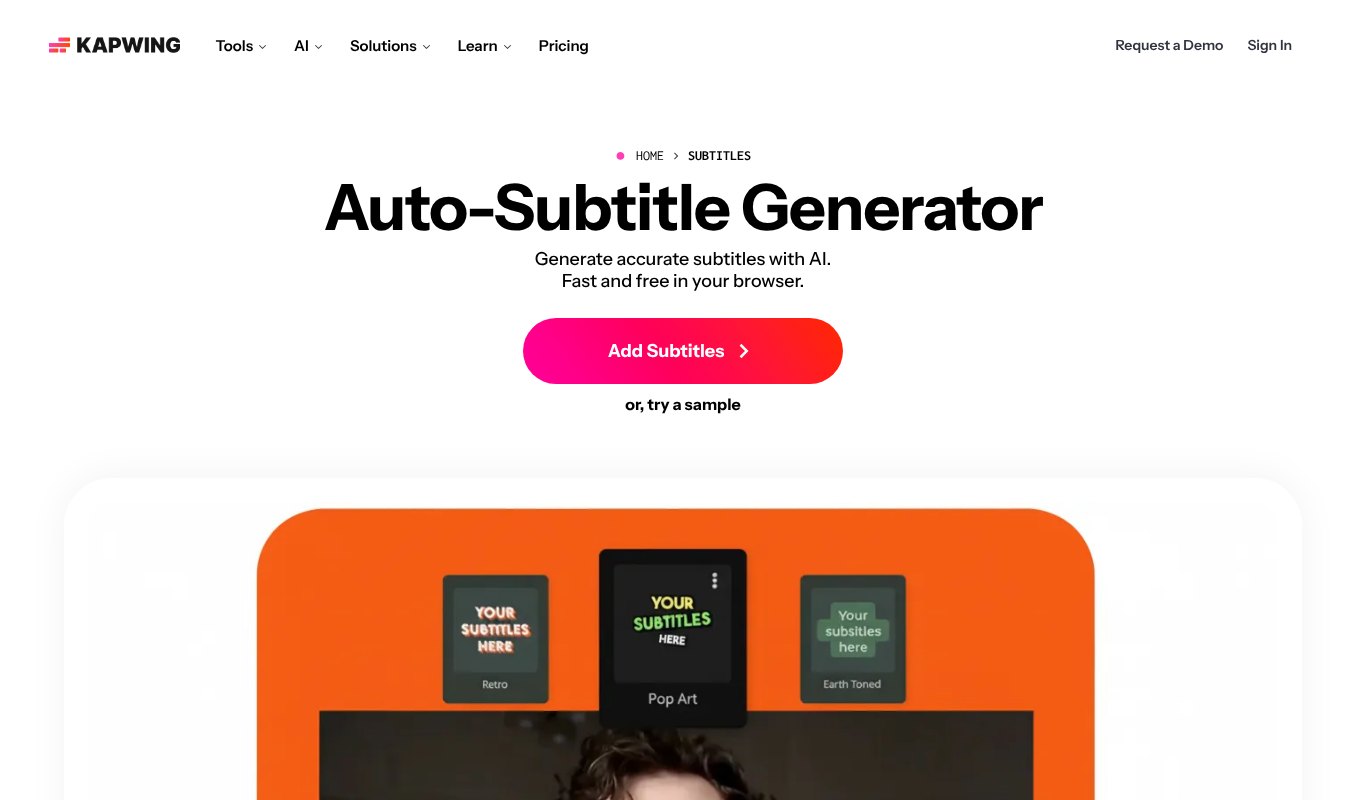
Kapwing is a simple online video editor with a strong auto-subtitle tool. Upload your video, click once, and it adds captions you can style and edit.
It's ideal for quick social videos and teams who want to work together in the browser.
Pros
- Very easy to use
- Works in any browser
- Translate into 40+ languages
Cons
- Free plan adds a watermark
- Free exports are limited to short videos
Pricing Free plan available. Pro is $16 a month, paid yearly.
5. VEED
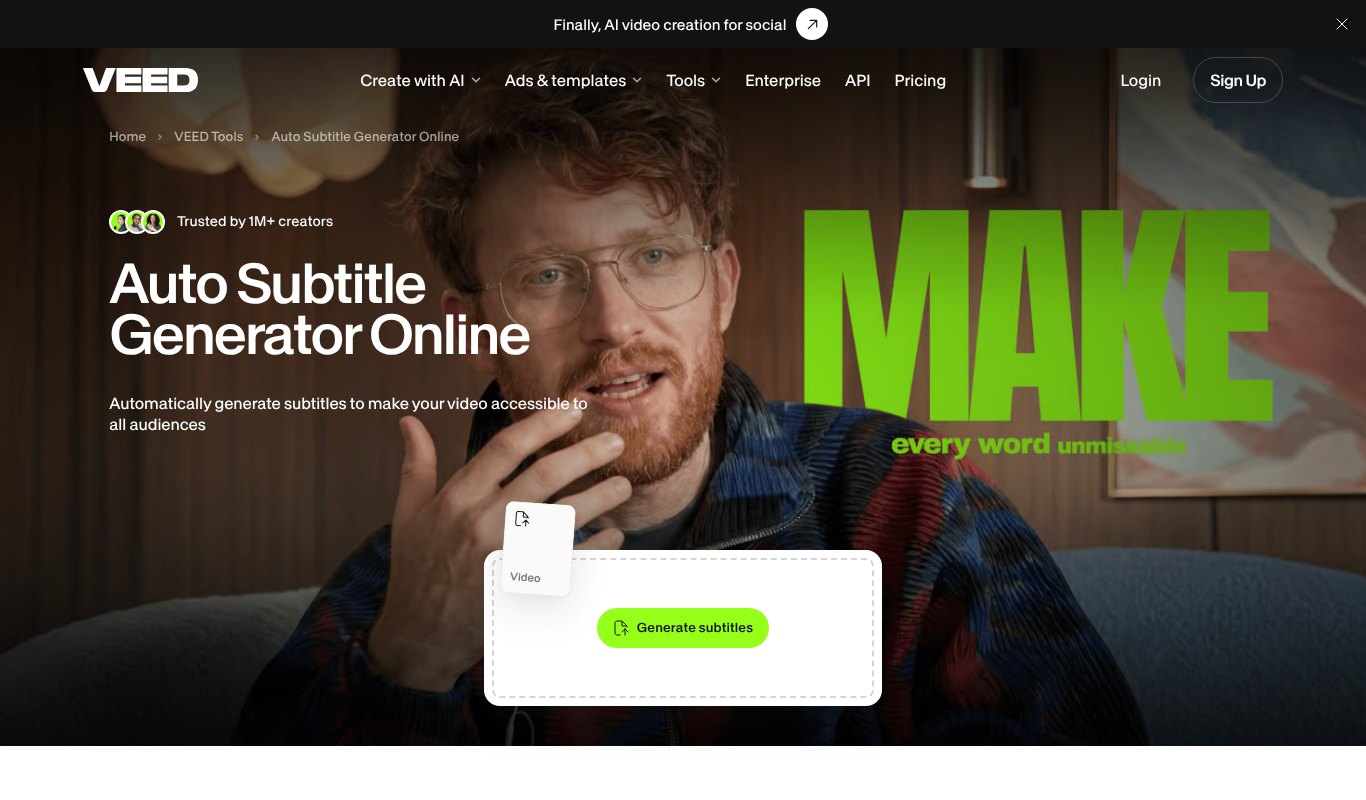
VEED is an online video editor that's especially good at social media captions. It has lots of animated caption styles and makes it easy to resize videos for different platforms.
Pros
- Lots of eye-catching caption styles
- Translate into 50+ languages
- Full video editor included
Cons
- Watermark on the free plan
- Best features sit on pricier plans
Pricing From $10 a month, billed yearly.
6. Happy Scribe
Happy Scribe focuses on transcription and subtitles, and it does both well. It supports 150+ languages and dialects and exports to many file formats, including SRT, DOCX and TXT.
Like Rev, it also offers human proofreading when you need near-perfect captions.
Pros
- Huge language support
- Many export formats
- Human proofreading available
Cons
- Limited minutes on lower plans
- Fewer styling options for social video
Pricing From $8.50 a month, with a free 10-minute trial.
7. Maestra
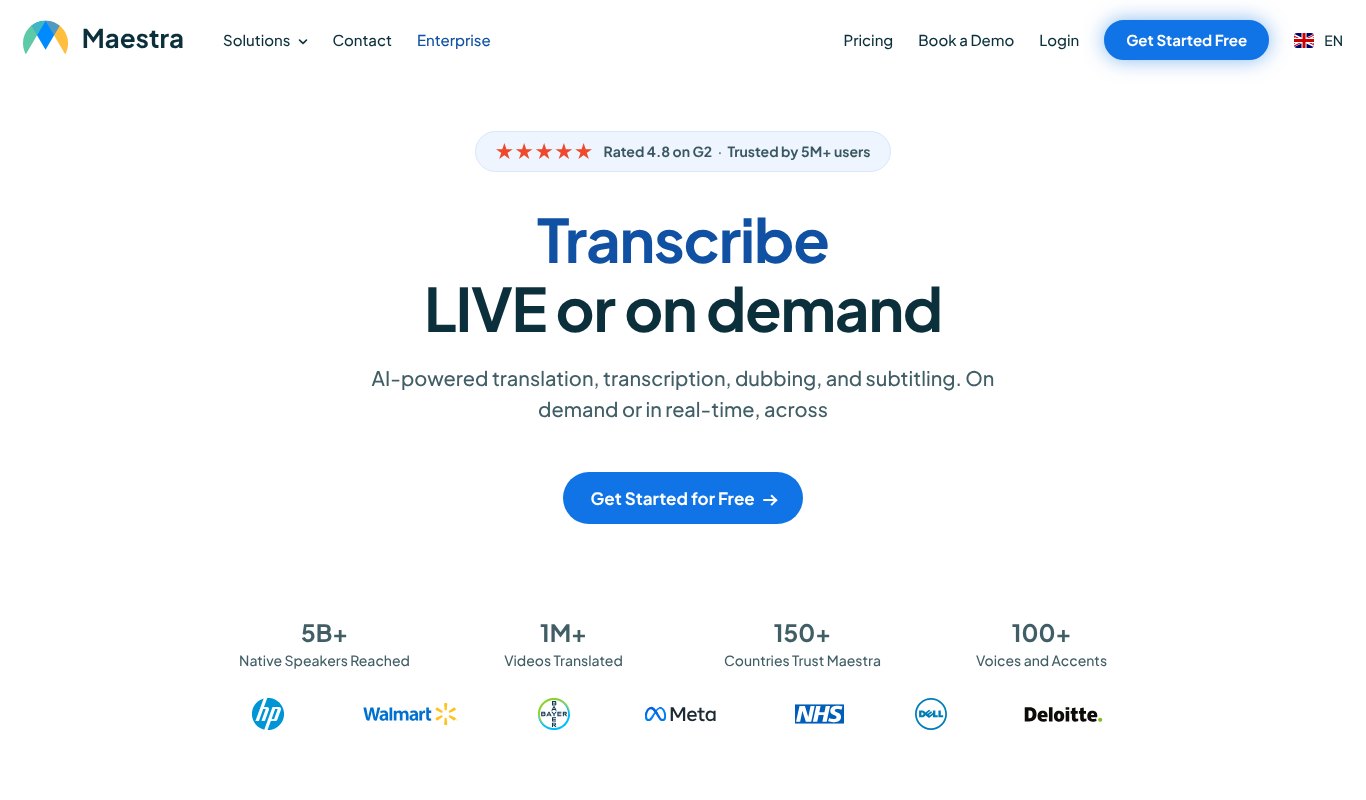
Maestra handles captions, transcription and voiceovers in 125+ languages. Its standout feature is live captioning, which is handy for streams, webinars and events.
Pros
- Live captions for streams and events
- 125+ languages
- Team features
Cons
- Higher price than most AI tools
- Credit system takes some getting used to
Pricing Lite is $23 a month billed yearly, or pay as you go at $12 for 60 credits.
8. Submagic
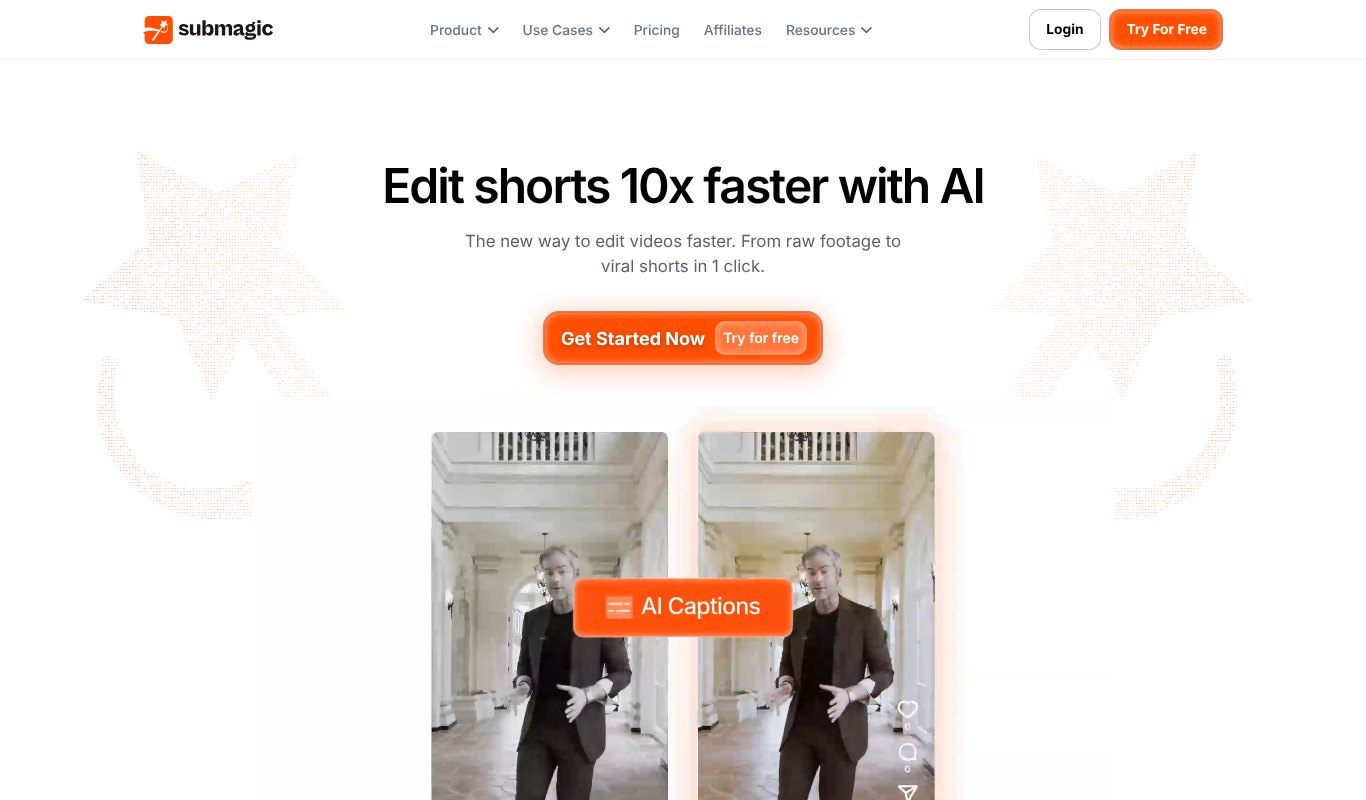
Submagic is built for short-form video. It adds bold, animated captions with emojis and highlights, the style you see all over TikTok, Reels and Shorts.
Pros
- Trendy, animated caption styles
- Auto emojis and highlighted words
- Fast for short videos
Cons
- Not made for long videos
- Not ideal for formal closed captions
Pricing From $12 per member a month, billed yearly.
9. CapCut
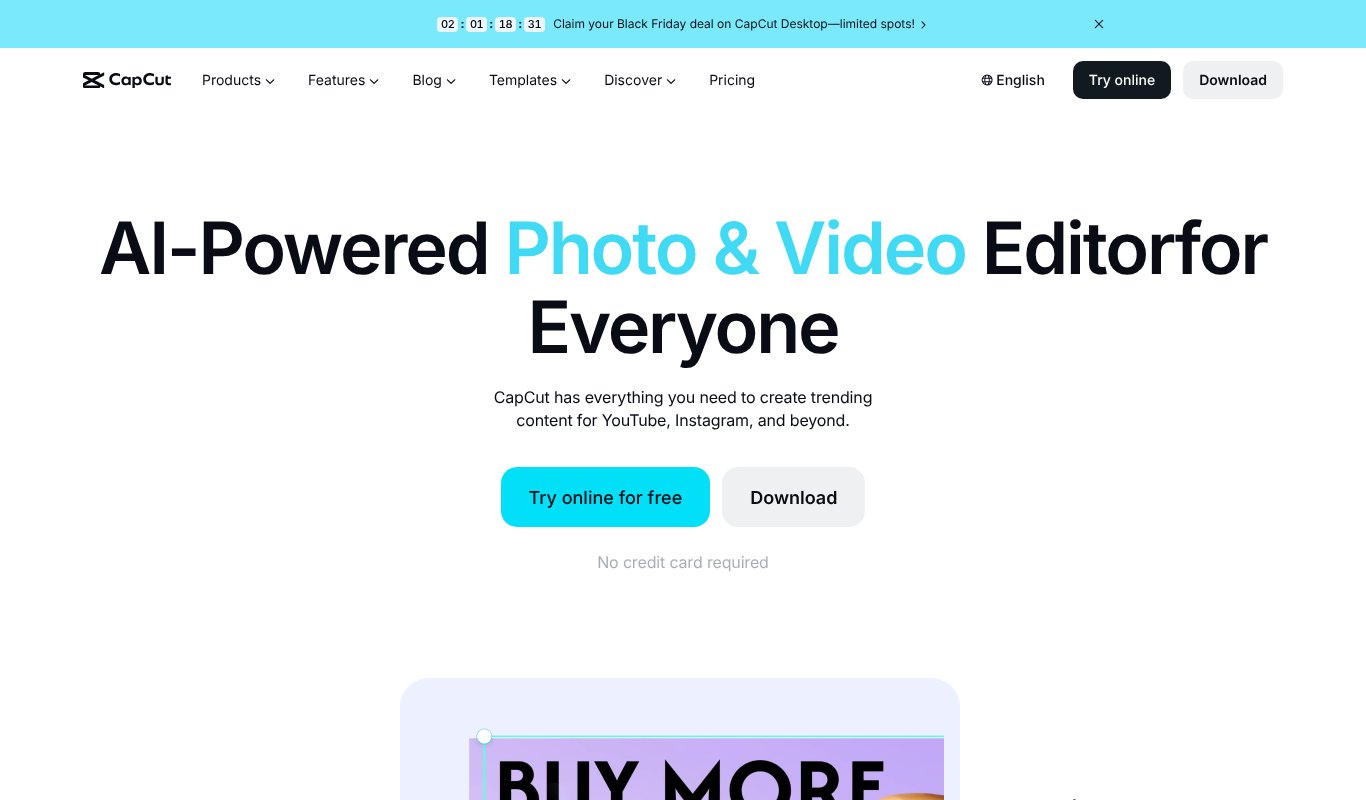
CapCut is a free video editor that's hugely popular with creators. Its auto captions are quick and come with plenty of styles.
It's a great free option, though the best features now sit behind Pro.
Pros
- Free auto captions
- Lots of styles and effects
- Desktop, web and mobile apps
Cons
- Many features moved to the paid plan
- Some businesses avoid it over data and policy concerns
Pricing Free plan available. Pro is $19.99 a month.
10. Subtitle Edit
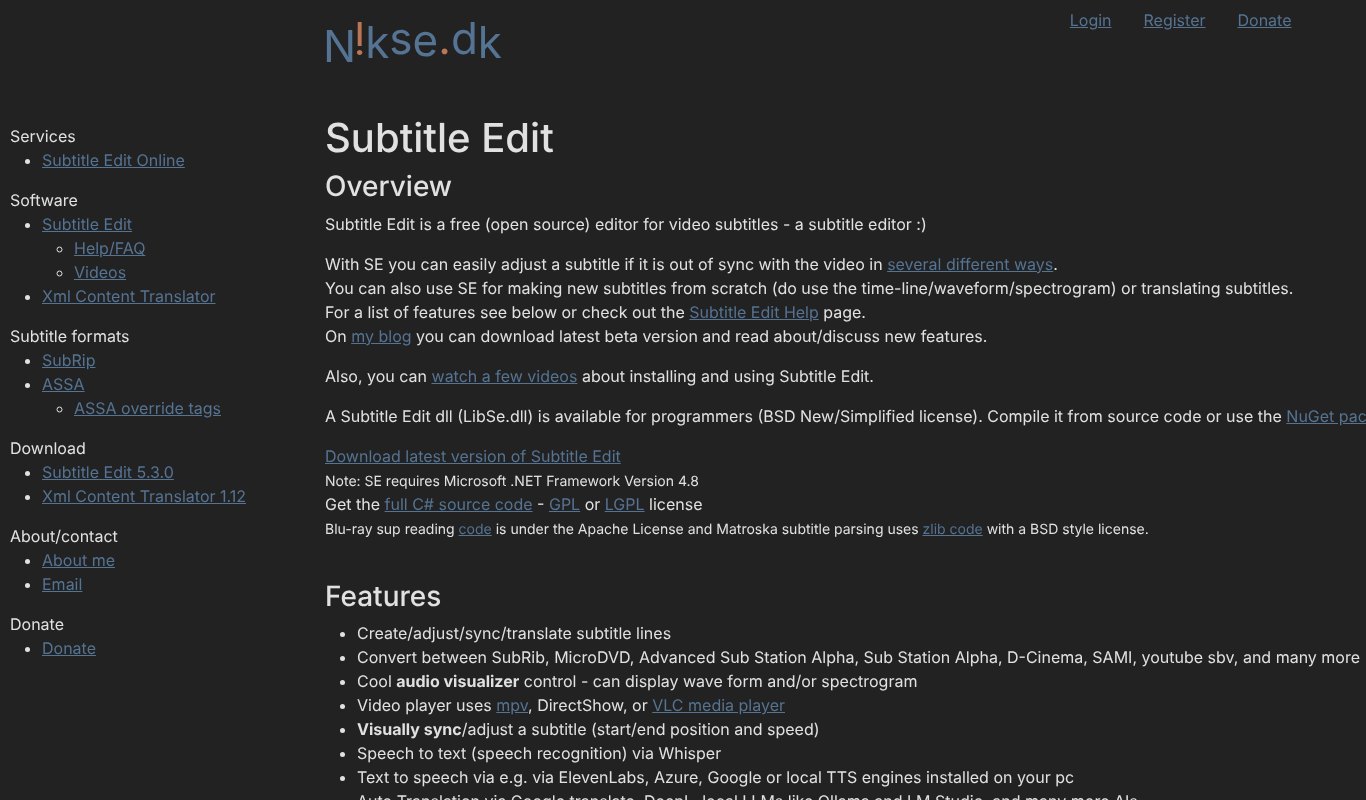
Subtitle Edit is a free, open-source subtitle editor for Windows. It's not pretty, but it's powerful. You can sync timings, fix errors, convert between dozens of formats and even create captions with speech recognition through Whisper.
Pros
- Completely free
- Supports a huge range of formats
- Precise timing controls
Cons
- Dated, technical interface
- No styled social captions
Pricing Free and open source.
11. YouTube Studio
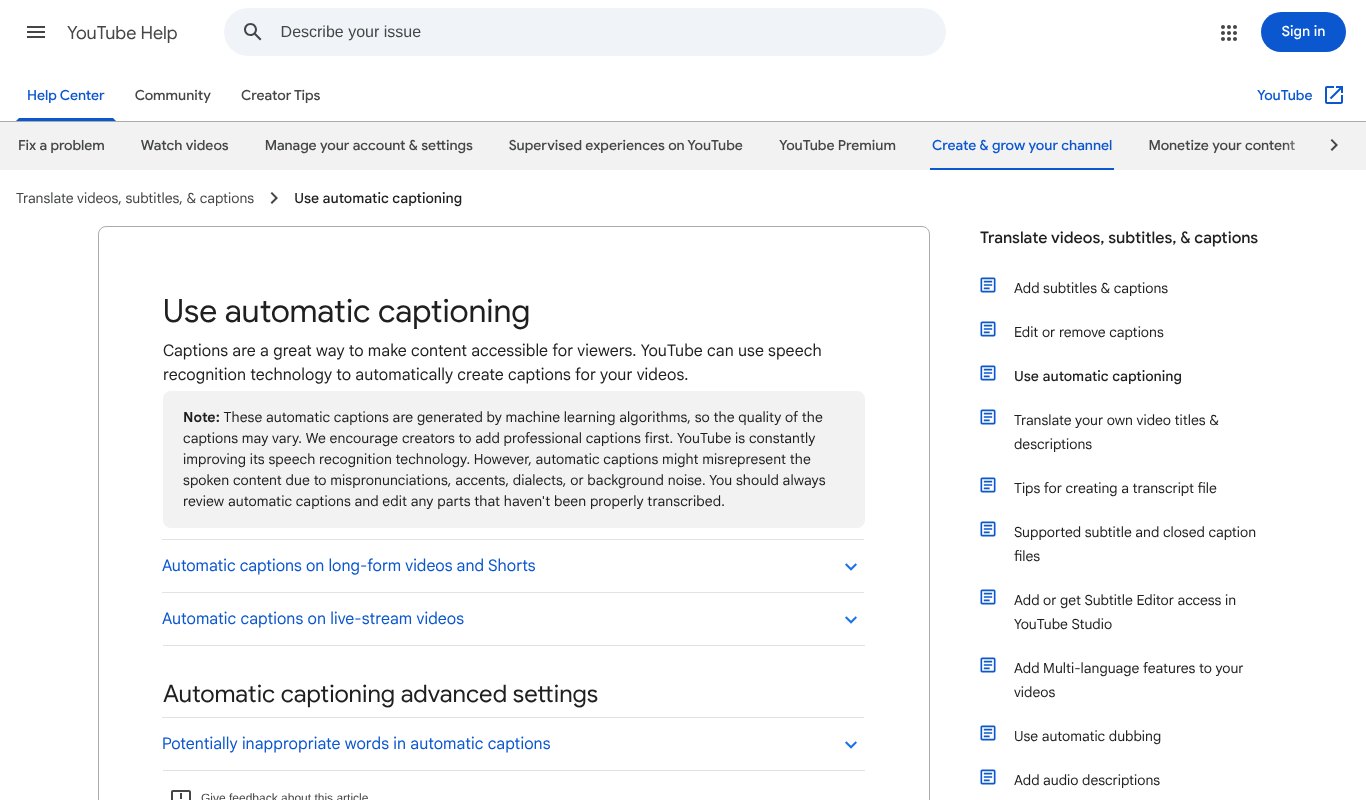
If your videos live on YouTube, automatic captions are already there. YouTube creates them for you, and you can edit them in YouTube Studio.
Accuracy varies with audio quality and accents, so always check them before relying on them. You can also upload your own caption file from any tool on this list for better results.
Pros
- Free and automatic
- Easy to edit in YouTube Studio
- Helps your videos get found
Cons
- Only works on YouTube
- Accuracy can be hit and miss
- No styled captions
Pricing Free.
How to Add Closed Captions to Your Videos
Whichever tool you choose, the steps are much the same.
1. Upload Your Video
Add your video file or paste a link. Clear audio makes a big difference, so use a decent microphone when you record.
2. Generate the Captions
Let the AI transcribe your video. This usually takes a few minutes.
3. Check and Fix
Read through the captions. Fix names, brand words and any mistakes. Add sound descriptions like [music] if you need true closed captions.
4. Style or Export
Burn styled captions into the video for social media, or export an SRT or VTT file for YouTube and video players.
Tips for Better Captions
- Keep each caption to one or two short lines.
- Make sure captions stay on screen long enough to read.
- Use high-contrast colours so text is easy to see.
- Keep captions away from faces and important parts of the picture.
- Always proofread, since even the best AI makes mistakes.
Which Tool Should You Choose?
- For marketers on a budget who also want translation and dubbing, go with VidScribe AI.
- For legal, medical or business work where every word matters, use Rev or Happy Scribe with human checking.
- For editing and captioning together, try Descript.
- For quick social clips, Submagic, VEED and Kapwing make captions that pop.
- For live streams and webinars, Maestra is the one with live captions.
- For zero cost, start with YouTube Studio, CapCut or Subtitle Edit.
Not sure yet? Most of these tools have a free plan or a trial. Caption the same short clip in two or three of them and compare the results side by side.
Final Thoughts
Captions aren't optional anymore. They bring more views, more watch time and more viewers who can enjoy your content.
If you need human-checked accuracy, Rev and Happy Scribe are strong choices. For free captions, YouTube Studio, CapCut and Subtitle Edit do the job.
But if you want accurate captions, translation and dubbing in one place for the lowest price, VidScribe AI is hard to beat.
FAQs About Closed Captioning Tools
What is the most accurate closed captioning tool?
For near-perfect results, human-verified services like Rev and Happy Scribe are the most accurate. Among AI tools, accuracy is now very high for clear audio, and a quick proofread fixes the rest.
Is there a free closed captioning tool?
Yes. YouTube Studio, CapCut and Subtitle Edit are all free. Kapwing and Rev also have free plans with limits.
What is the difference between SRT and VTT files?
Both are caption files with text and timings. SRT is the most widely supported. VTT is made for web video players and supports a little more styling.
Can I translate my captions into other languages?
Yes. Many tools on this list can translate captions, and VidScribe AI can also redub your video in the new language.
Do captions help my videos rank better?
They can. Captions give YouTube and search engines text to read, which helps them understand what your video is about. Translated captions can also help you show up in searches in other languages.